As a Sales Manager, you can change the Office on the Account by following the steps below:
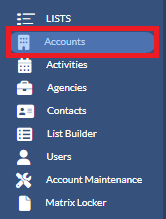
1. Click on Accounts from the left navigation pane.
2. Type the account name in the Search box to locate the Account you are trying to reassign.

3. There are two ways of selecting the offices that you wish to update.
- If you would like to update ALL the offices on the account, add a check mark next to it (on the left of the account )

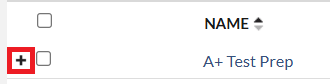
- If you would like to change only SOME Offices on the Account, Click the plus sign (+) in front of the account to expand the sub-grip level to view the Outlets/Offices on the Account.
 Then add a check mark in front of the outlet that you wish to change the Office.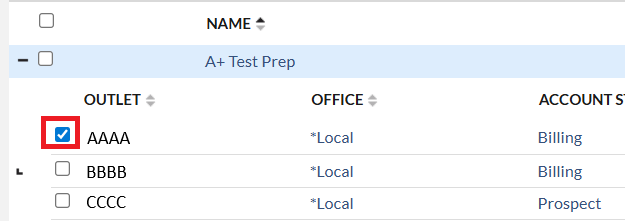
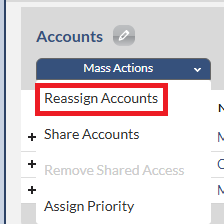
5. Click Mass Action and select Reassign Accounts. Then the Reassign Accounts dialog box will display.
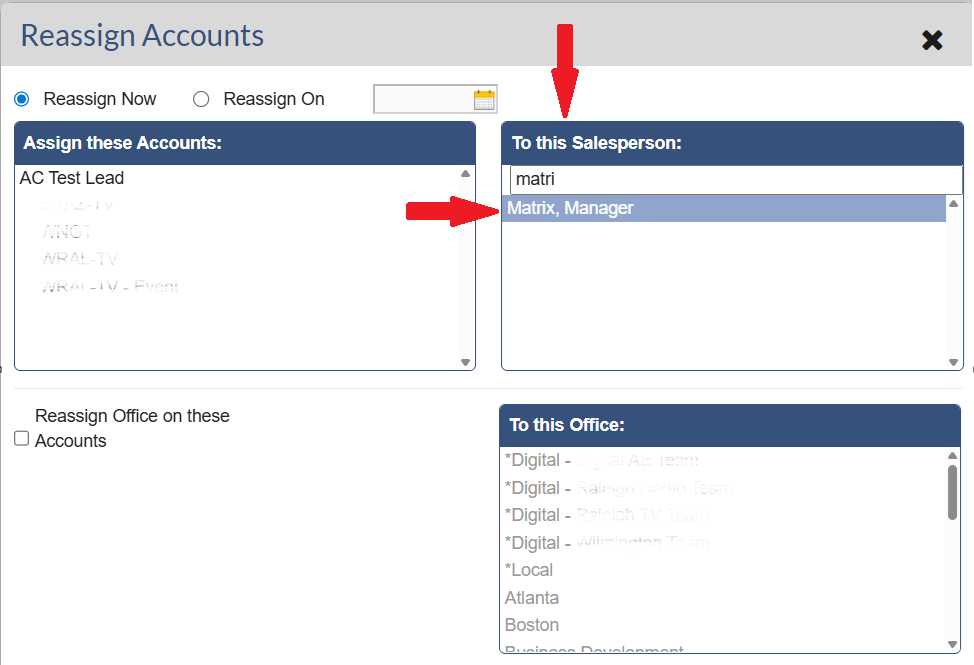
6. Under To This Salesperson's box, in the search box, type in the the Salesperson name to whom the account should be assigned. Click on the Salesperson name (make sure his/her name highlights as shown in the picture below).
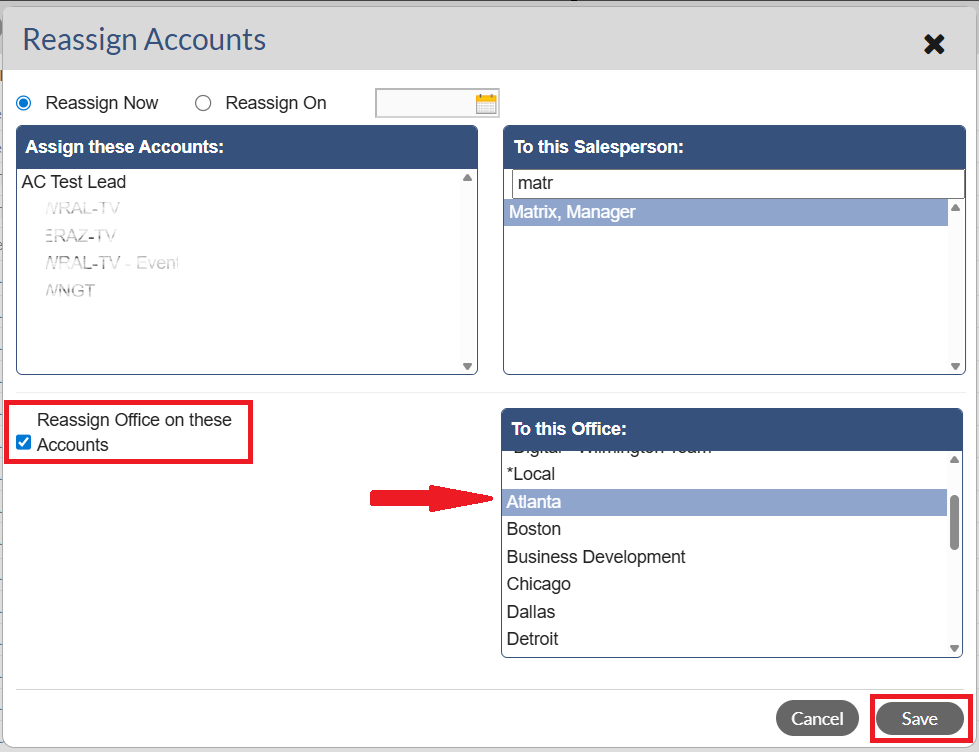
7. Add a check mark in front of the Reassign Office on these Accounts. Click on the Outlet name (make sure it highlights as shown in the picture below). Then click the Save button.
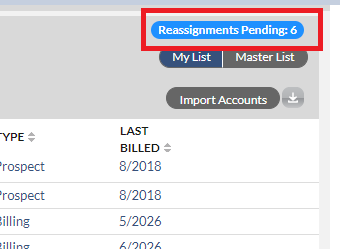
8. The system will bring you back to your Account list displaying a notification that there are Reassignments Pending.
Note - These include the number of Reassignments for your entire Company. Your Accounts will be reassigned in the order they were added. Once the reassignment has completed, the account will display with the new Office.