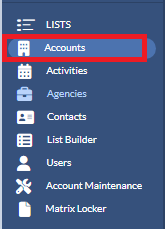
To access the Accounts page, click on Accounts under Lists on the left-hand side of your screen.
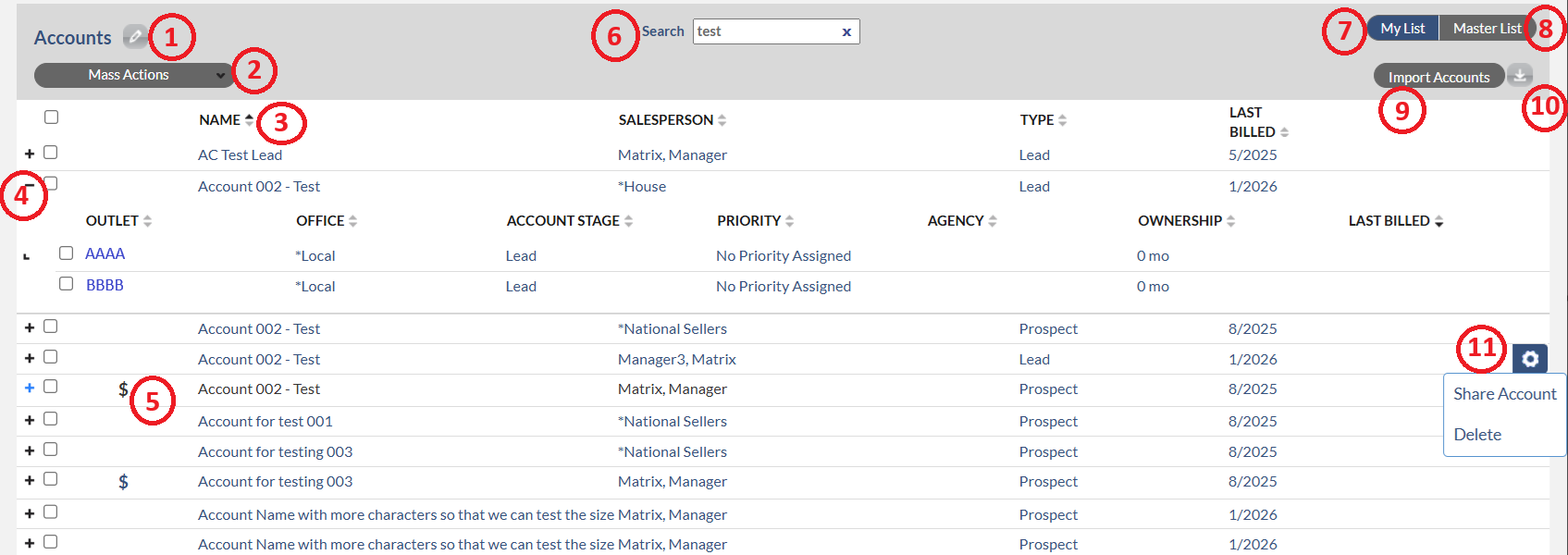
On this page, the following functionalities are available:
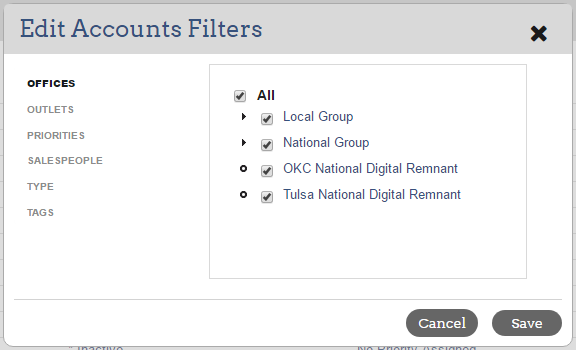
1. Filtering - When you need to narrow down your view to a specific segment of Accounts click the  to access the filter options. Once you click the filter icon, the Edit Account Filters dialog box will display. You can select the primary attributes on the left to then uncheck the individual items on the right that you'd like to exclude from your view.
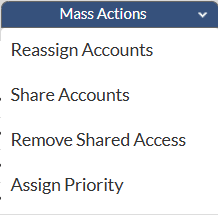
2. Mass Actions - Once you click on this button, you will see the options in the screenshot below. Note that the managers have access to all options in Mass Actions. However, salespeople have access only to the Assign Priority option on their end. If salespeople want to reassign or share accounts, they will need to reach out to their manager. Below are the links for the instructions on how to reassign, share accounts or assign priority to accounts.
Monarch - Account List - Reassign Account to New Salesperson - Manager
Monarch - Shared Accounts - Manager
Monarch - Editing the Priority on Account
3. Sorting - You can sort each column by clicking on the arrows next to the column. Below are the columns at the account level that can be sorted.
- Name - Account name
- Salesperson - Salesperson who currently owns the account.
- Type - There are four account types:
- Lead –These are non-billing accounts that have not yet been approved by a manager. Deals cannot be added. To submit the lead for approval, please click here for the instructions.
- Prospect – When a Lead Account is approved by a manager, it is automatically converted to a Prospect Account. Deals can be added to Prospect Accounts.
- Billing – An account becomes a Billing Account when at least one associated Outlet is actively generating revenue through the billing/trafficking system.
- Upsell – A hybrid account containing a mix of both Billing and Prospect Outlets. Example: an Account is billing on the AAAA outlet and is a Prospect without billing on the BBBB Outlet. This setup supports revenue growth and expansion across Outlets within the same account.
- Last Billed - Last month and year that the account has billing. Note that Last Billed on the Lead and Prospect is the month and year that the account was created (Pro-tip: sort by the Last Billed column to see Accounts that haven't, or have, bought with you recently).
4. Plus sign (+) in front of account - Once you click the + sign preceding the Account name, the outlet level will expand. You will see the details of the account below. Note that each column below can be sorted by clicking on the arrows next to the column.
- Outlet - Outlet names that are associated to the account.
- Office - Office names that are associated to each outlet on the account.
- Account Stage - There are three stages: Lead, Prospect, and Billing. This is the same as the Type under the Sorting section
- Priority - Each priority is defined by your Corporate.
- Agency - Agency names that are associated to each outlet on the account.
- Ownership - How many months/years the account owner has owned the outlet/office/agency on the account.
- Last Billed - Last month and year the account has billing. Note that Last Billed on the Lead and Prospect is the month and year the account was created.
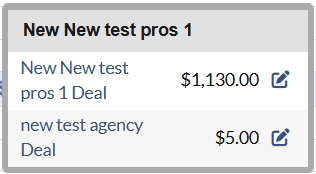
5. Dollar sign ($) - If the account has any open pending deals, the dollar sign will display in front of the account. Once you hover your mouse over the Dollar sign icon, a pop-up similar to the screenshot below will display. The pop-up shows all the open pending deal names and amounts. If you click on a Deal name, the Deal profile will display. To learn about the Deal profile, please view this article: Monarch - Deal Profile Overview. Also, there is a small pencil icon next to the deal amount. If you click on this pencil icon, the Deal Quick Edit dialog box will display. On this dialog box, you can add or edit the pending amount.
6. Search - You can search for any account by typing the account name in the search box.
7. My List - If you are a salesperson, it shows all the accounts that are assigned or shared to your names. If you are a manager, it displays all accounts in your team and account owners have access to both outlets and offices on the accounts. On this page, the account profile including the account information such as activities and contacts can be accessed by clicking the account name.
8. Master List - It displays all the accounts that are assigned to your teams. However, you CANNOT access the Account Profile on the Master List page. If you would like to learn more about Master list page, please view this article: Monarch - Master List Overview
9. Import Account - You can import a list of Leads or Prospects (depending on your permissions). Please view this article for the instructions: Monarch - Importing Accounts
10. Exporting - To download the accounts list to Microsoft Excel, select the Export icon  in the upper right-hand corner of the page. In Microsoft Excel, you can print the list and perform other functions native to that application.
11. Gear icon - This icon displays on the right only when you hover your mouse over the account name. Once you click on the Gear icon, you will see two options below:
- Shared Account - this option is available for managers only. You can share the account to other salespeople by clicking this option. To learn more, please view this article: Monarch - Shared Accounts - Manager
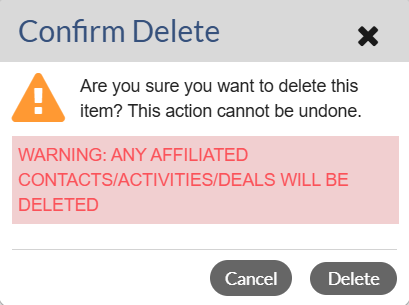
- Delete - this option is available for both manager and salesperson. However, this option only shows on Leads and Prospects. So only Leads and Prospects can be deleted. You cannot delete billing accounts. Once you click on this option, the Confirm dialog box will display and ask if you want to delete the account. Once you click Delete button, the account will be removed from the list.