
The Prospecting dashboard will provide you the ability to go through the account list that your station has and then request them to be reassign to you. To access the Prospect dashboard, please click Prospecting on the left in the Navigation Panel.
Note: If you are a manager, please view this article: Monarch - Prospecting Page - Manager

There are four data cards on this dashboard for Account Executives.
- Search for Account - This data card will provide you the account list containing the keyword that you enter into the Search box and then click the Search button.
- Accounts Without Recent Billing - This data card will provide you the account list based on the Category that you select from the Category drop down list.
- Potentially Churning Leads/Prospects - This data card will provide you the Leads or Prospects that haven't been converted in over 120 days.
- Accounts I've Requested - This data card will provide the list of accounts that you have requested and they are still waiting for your manager to approve.
To claim the accounts, please follow the steps below:
1. On the Search for Account data card, please type the account name in the Search box and click Search.

2. Then you will see the list of the account names containing the words that you entered in the Search box. Please select the drop down arrow on the left to see more information.

3. Check the checkbox(es) in front of the salesperson whose account is currently assigned to and you would like to claim their account. Note: When you check the checkbox in front of the salesperson name, the list of outlets on the account will be displayed. Please check the outlet(s) that you wish to claim.

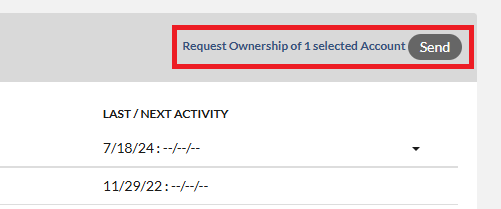
4. After making your selection, click the Send button at the top right. This will ONLY go to the assigned Manager(s) for this particular Outlet.
Notes:
- If more than one manager is assigned to a particular Outlet, they will both receive an email notification of the account request. Once any of the managers approve or Deny the request, it will be removed from (All) the Managers list of “Accounts Requested to be Reassigned”.
- If you select the Back button in the upper left corner to return to the Prospecting panel, you will see the number of accounts that you have requested on the Accounts data card that I have requested. If you click on the number of accounts in the accounts that I have requested, the list of accounts will be opened in more detail.

Key Word Search: prospecting, claim, reassignment.