
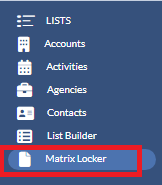
The folders section is located on the left hand side on the Matrix Locker page. To access Matrix Locker page, please click on Matrix Locker under Lists on the left-hand side of your screen.
If you have a lot of files, we highly recommend creating new folders to keep your files organized and easy to find.
To create a new folder, please follow that below steps:
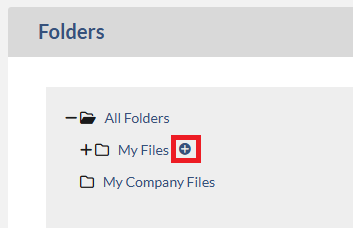
1. On the Folders section, click the plus sign(+) next to My Files. The Create Folder dialog will display.
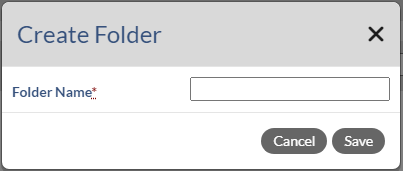
2. On the Create Folder dialog, enter the folder name and click Save.
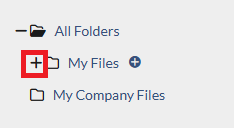
3. To see the newly added folder, please click plus sign (+) in front of My files. In the below screen shot, we added the new folder named "Test".
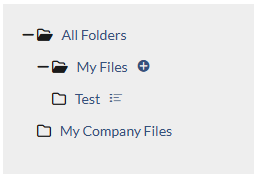
For newly added folder, you can rename or delete it. Also, you can add the subfolder under it.
To rename the folder, please follow the below steps:
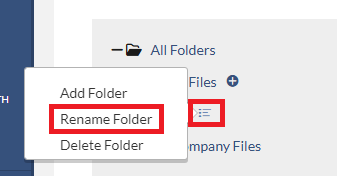
1. On the Folders section, click the menu next to the folder that you wish to rename and select Rename Folder. The Edit Folder dialog will display.
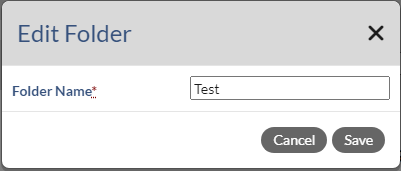
2. On the Edit Folder dialog, please enter the new folder name and click Save.
To delete folder, please follow the below steps:
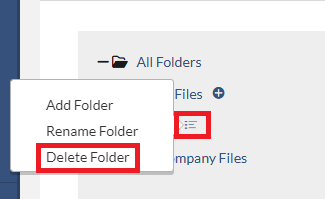
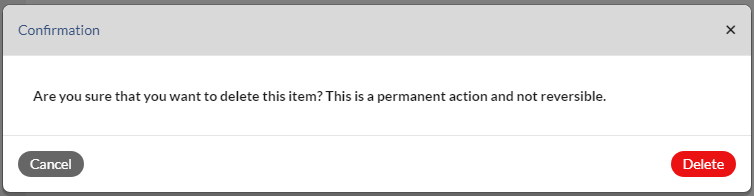
1. On the Folders section, click the menu next to the folder that you wish to delete and select Delete Folder. The Confirmation dialog will display.
2.On Confirmation dialog, click Delete.
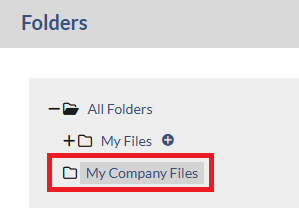
Note: On the Folder section, there is a folder named My Company Files. Any files that you upload into this folder are accessible by everyone in your company. This is also a place where your managers store any files that they want to share with you.
To learn more about Matrix Locker, please click on the below links:
Monarch - Matrix Locker - File Overview